ValVoice - Chat-to-Speech for Valorant
A downloadable tool for Windows
🎮 Let your teammates hear what you type — in real-time
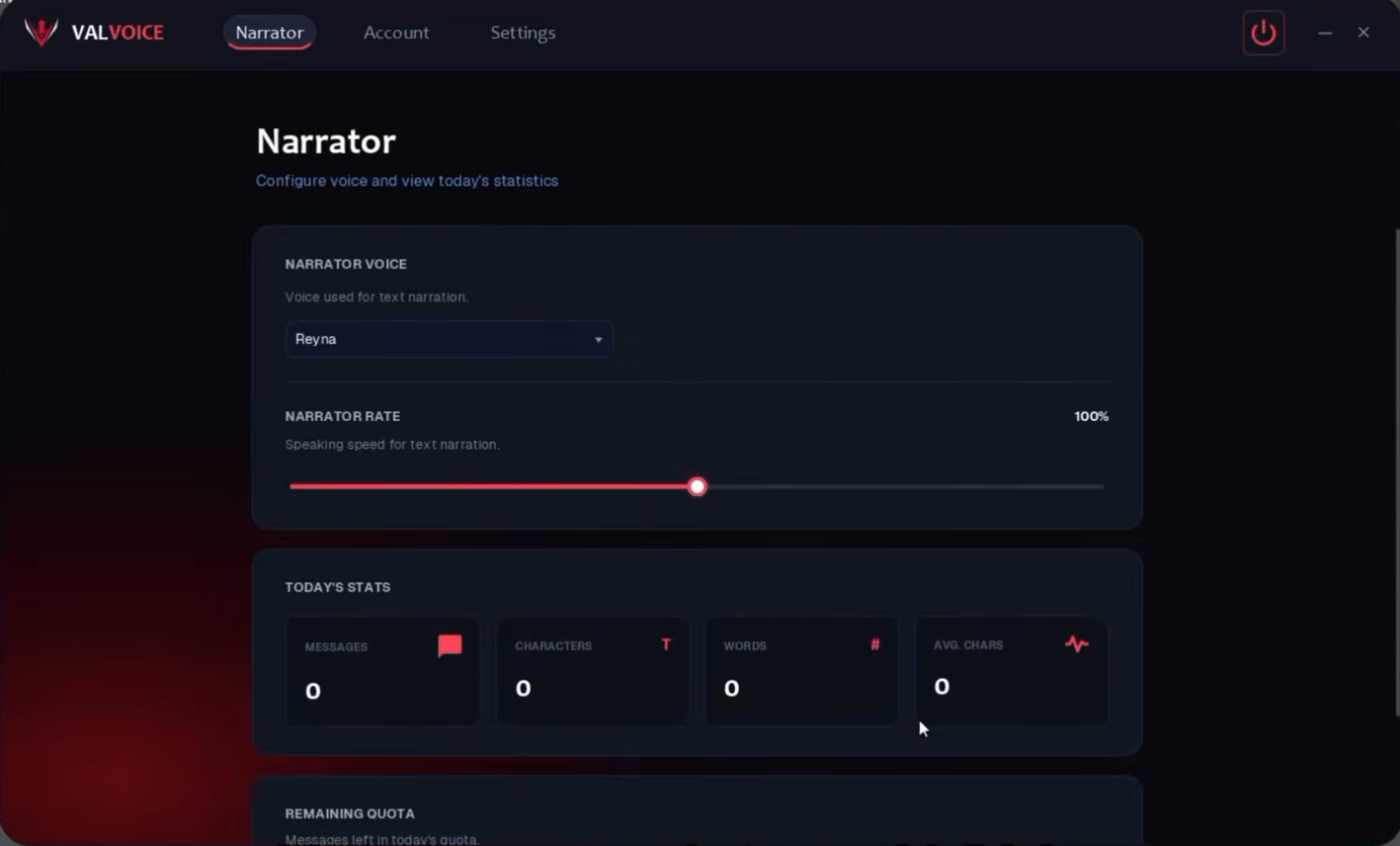
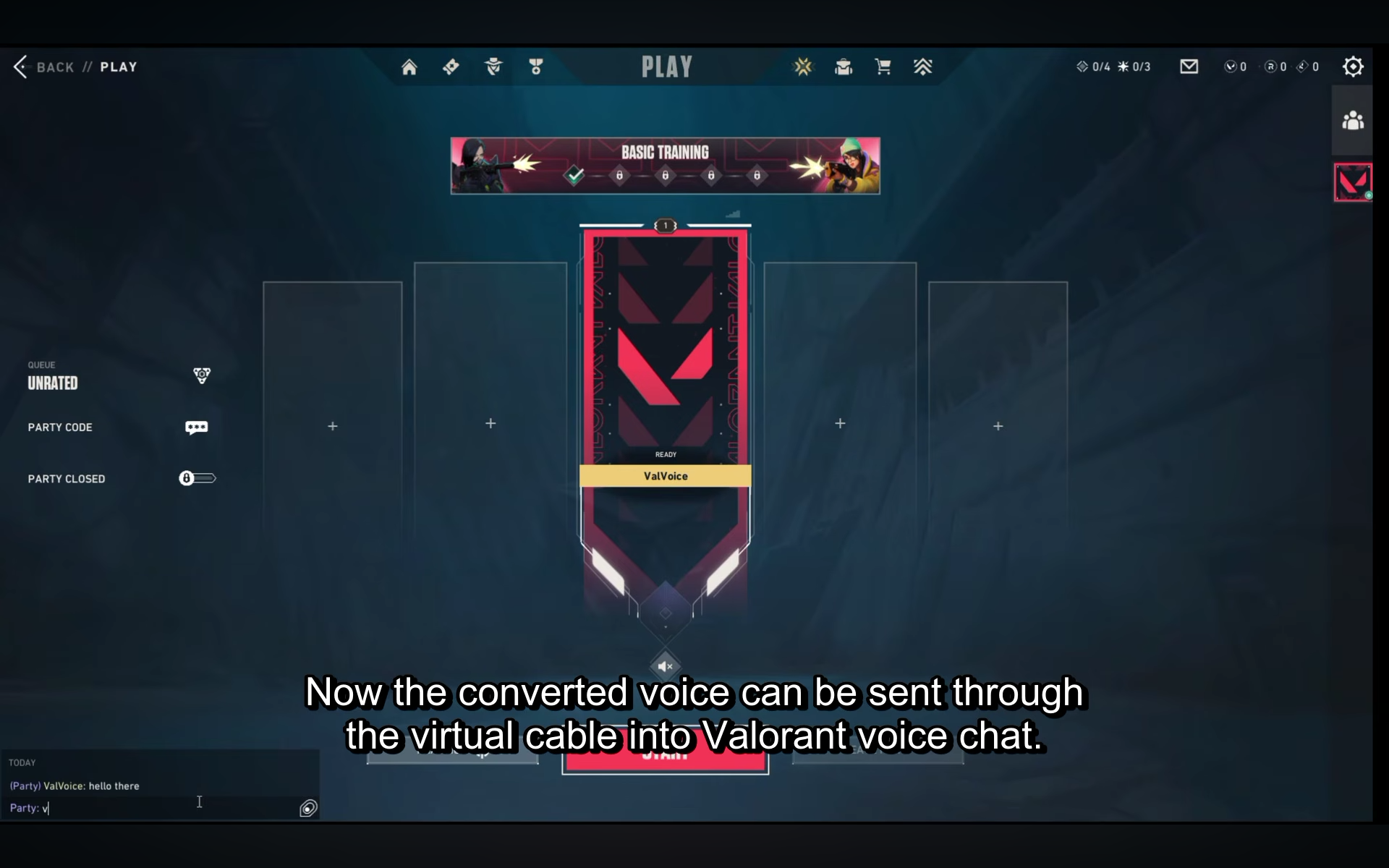
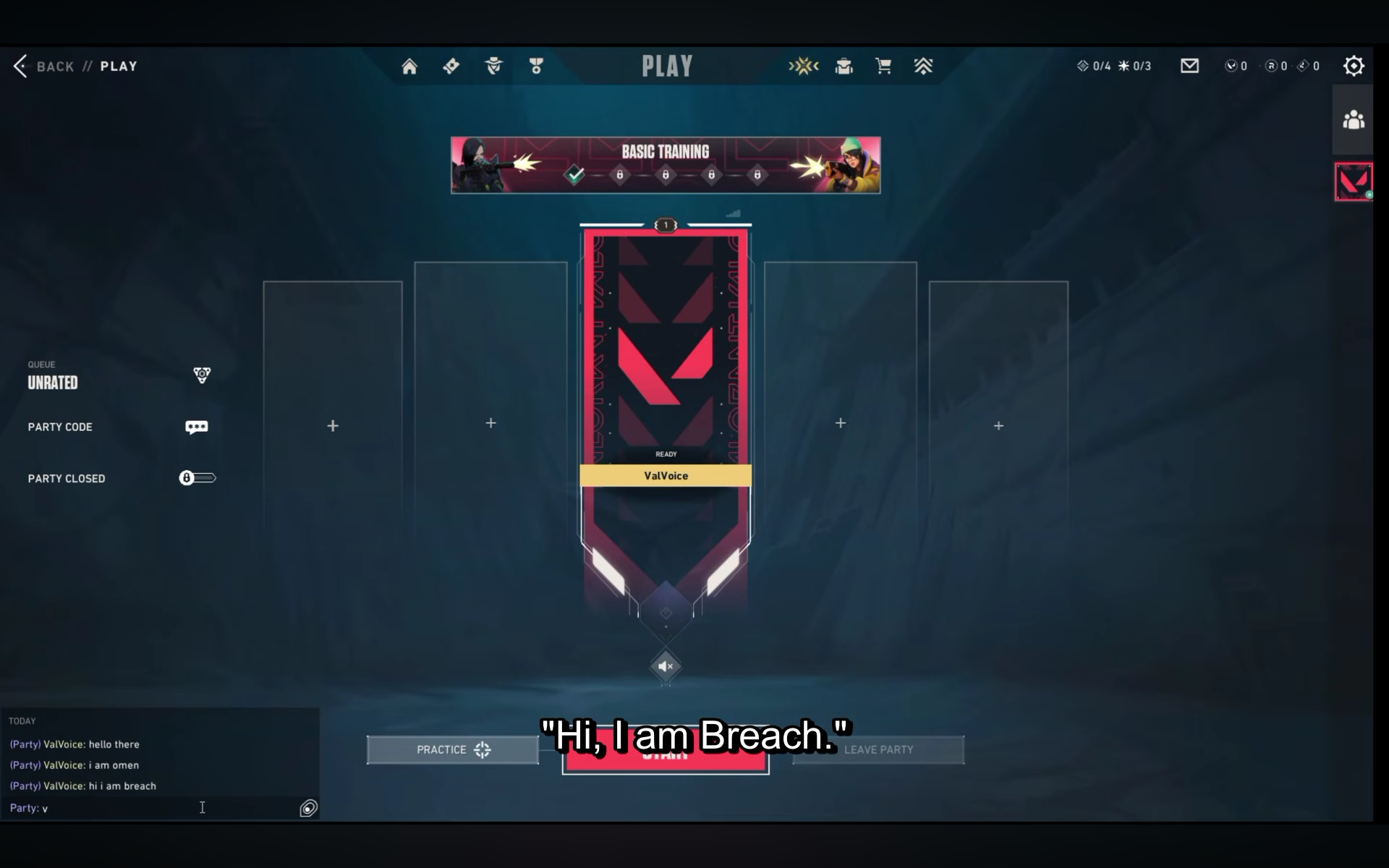
ValVoice is a free desktop companion application for Valorant that converts your text chat into real-time voice callouts. Designed for players without microphones, players with voice anxiety, or gamers seeking accessibility options, ValVoice routes AI-narrated speech directly into in-game voice chat via Push-to-Talk so teammates can hear messages instantly.
Key Features
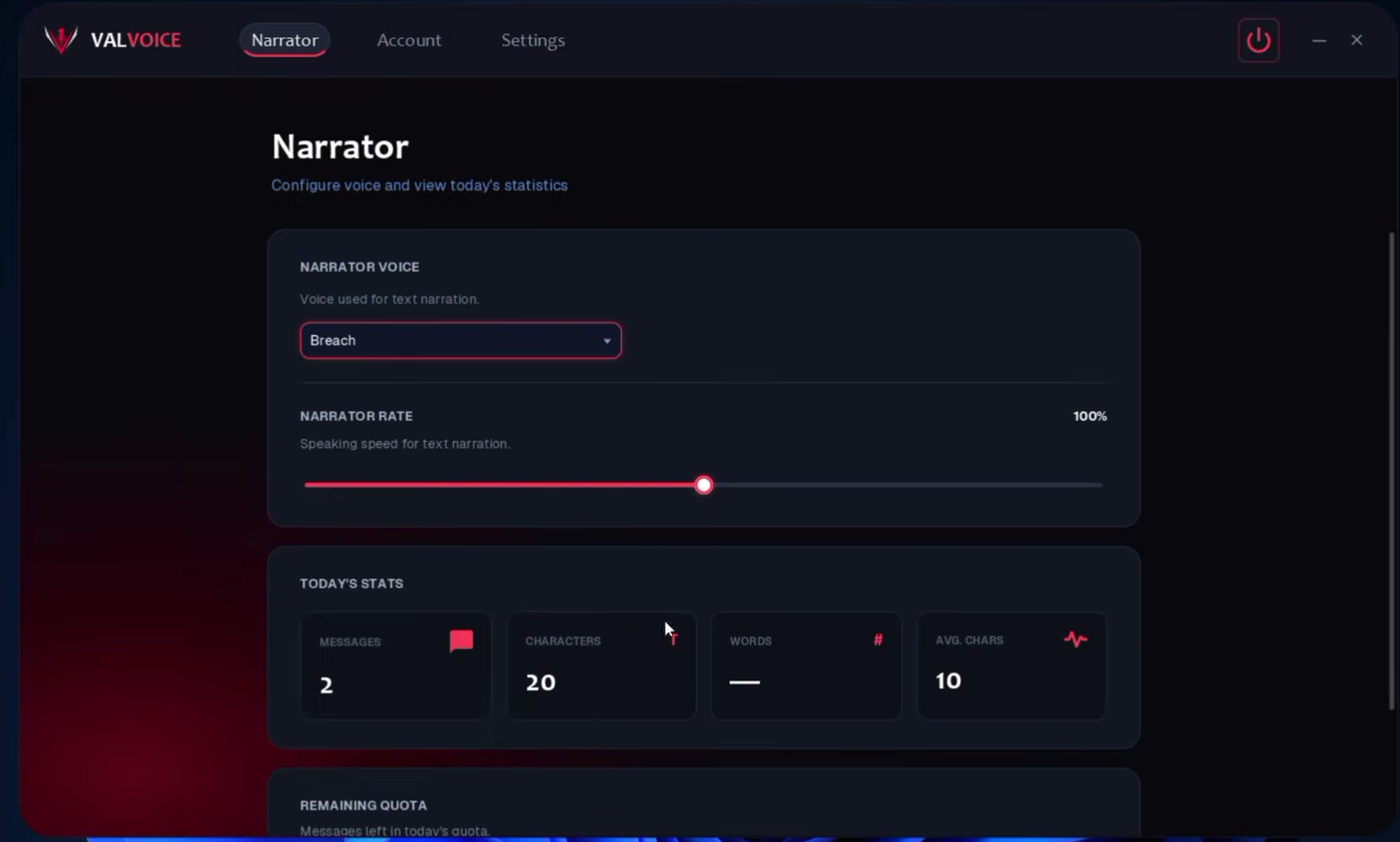
• 29 Valorant Agent Voices: Speak using the voices of Jett, Sage, Viper, Phoenix, Cypher, and more!
• 100% Offline & Local: Powered by an optimized Kyutai Pocket TTS engine running locally on your CPU. Zero cloud subscriptions, zero API keys, and zero telemetry tracking your chat.
• Automated Push-to-Talk: Automatically triggers and releases your Valorant PTT key (default: V) during speech playback.
• Sleek JavaFX UI: Clean dark-mode interface with an integrated 3-step setup wizard.
• Self-Contained: Bundles its own Java 23 runtime and isolated TTS engine.
Is It Safe from Vanguard Bans? (Anti-Cheat FAQ)
YES. ValVoice is 100% Vanguard-safe by design:
1. No Memory Injection: Does not attach debuggers, inject DLLs, or read game memory.
2. No Game File Modification: Does not touch any Riot Games or Valorant files.
3. No Network MITM / Certificate Proxies: Unlike older tools that intercepted TLS network packets, ValVoice uses standard Windows Graphics Capture + Windows OCR API to read on-screen text completely outside the game process.
• Open Source & Releases: https://github.com/ValoVoice/ValVoice-Releases
Quick Setup Guide
1. Download and run ValVoice-Setup.exe.
2. Install the free VB-Audio Virtual Cable (required to route TTS to Valorant voice chat).
3. In Valorant Settings -> Audio -> Voice Chat:
• Set Input Device to CABLE Output (VB-Audio Virtual Cable).
• Set your Push-to-Talk Key to V (or match whatever key you set in ValVoice).
4. Critical Startup Order: Always launch ValVoice first, then open Valorant!
Official Links & Tutorials
• Official Website: https://valvoice.vercel.app/
• GitHub Releases: https://github.com/ValoVoice/ValVoice-Releases
• YouTube Channel: https://www.youtube.com/@ValVoiceApp
• X (Twitter): https://x.com/ValornatVoice
Download
Install instructions
🚀 Quick Installation & Setup Instructions:
1. RUN THE INSTALLER:
• Double-click ValVoice-Setup.exe to start installation.
• Note: If Windows SmartScreen appears ("Unknown Publisher"), click "More info" → "Run anyway". (Java 23 and the offline AI engine are bundled automatically!).
2. INSTALL VB-CABLE (Required for voice routing):
• Download and install the free virtual cable: https://vb-audio.com/Cable/
• This allows ValVoice to route speech cleanly into Valorant voice chat.
3. VALORANT SETTINGS:
• Open Valorant → Settings → Audio → Voice Chat.
• Set Input Device (Microphone) to: "CABLE Output (VB-Audio Virtual Cable)".
• Set your Team Voice Push-to-Talk key to "V" (or match the key you choose in ValVoice).
4. CRITICAL STARTUP ORDER:
• Always launch ValVoice BEFORE launching Valorant!
📺 Video Walkthroughs:
• How to Install (0:52):
• How to Set Up Audio & OCR (1:23):
Support & GitHub Releases: https://github.com/ValoVoice/ValVoice-Releases
Leave a comment
Log in with itch.io to leave a comment.